> For the complete documentation index, see [llms.txt](https://tigerup.gitbook.io/tigerup-redesign-coming-soon/llms.txt). Markdown versions of documentation pages are available by appending `.md` to page URLs; this page is available as [Markdown](https://tigerup.gitbook.io/tigerup-redesign-coming-soon/guides/purchase-bnb-binance.md).
# Purchase BNB (Binance)
Binance Exchange is the world’s largest exchange in terms of the daily trading volume of cryptocurrencies. It hosts over 600+ cryptocurrencies as a means of buying, selling, and trading.
{% hint style="info" %}
Download and install the Binance Exchange. ([Download](https://www.binance.com/en/download))
{% endhint %}
**The entire process involves 6 steps:**
1. [Registration of Account](#i.-registration-of-account)
2. [Personal Verification Process](#ii.-personal-verification-process)
3. [Identity Verification Process (KYC)](#iii.-identity-verification-process-kyc)
4. [Add Payment Methods](#iv.-add-payment-methods)
5. [Purchase of BNB/BUSD](#v.-purchase-of-bnb-busd)
6. [Withdraw BNB/BUSD to personal wallet](#vi.-withdraw-bnb-busd-to-personal-wallet)
### I. Registration of Account
Open the Binance application.
**Registration of account can be done via three methods:**
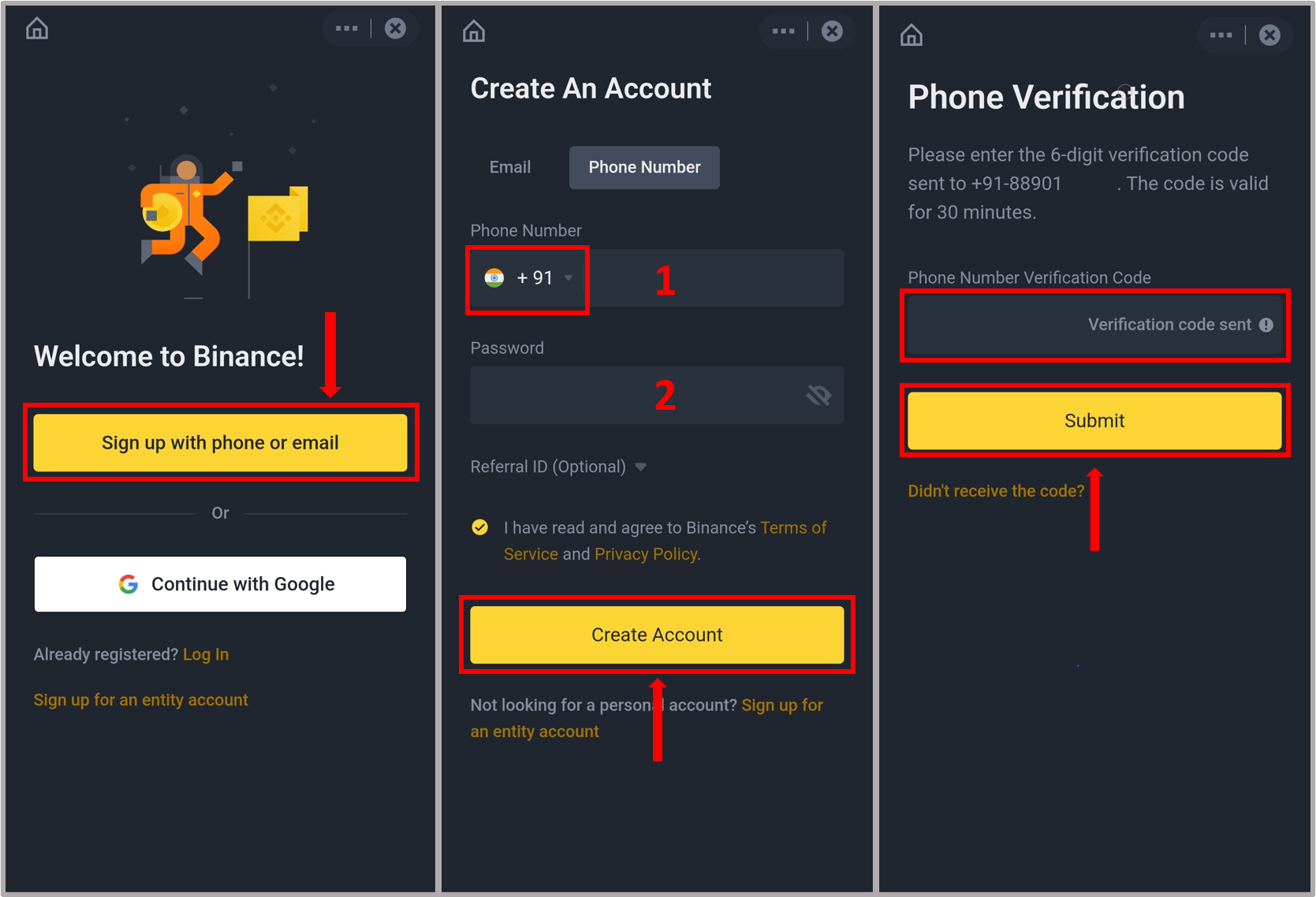
#### 1. Using **P**hone Number
* Tap **Sign up with phone or email**.
* Choose the country code.
* Enter the **phone number**.
* Set a **password**.
* Enter **Referral ID**, if any.
* Put a **check** against the T\&C and Privacy Policy.
* Tap **Create Account**.
{% hint style="info" %}
Slide down the puzzle to complete Security Verification, if asked.
{% endhint %}
A verification code will be sent to the entered phone number.
* Enter the **code**.
* Tap **Submit**.
#### 2. Using Email Address
* Tap **Sign up with phone or email**.
* Enter a **valid email**.
* Set a **password**.
* Enter **Referral ID**, if any.
* Put a **check** against the T\&C and Privacy Policy.
* Tap **Create Account**.
{% hint style="info" %}
Slide down the puzzle to complete Security Verification, if asked.
{% endhint %}
A verification code will be sent to the entered email address.
* Enter the **code**.
* Tap **Submit**.
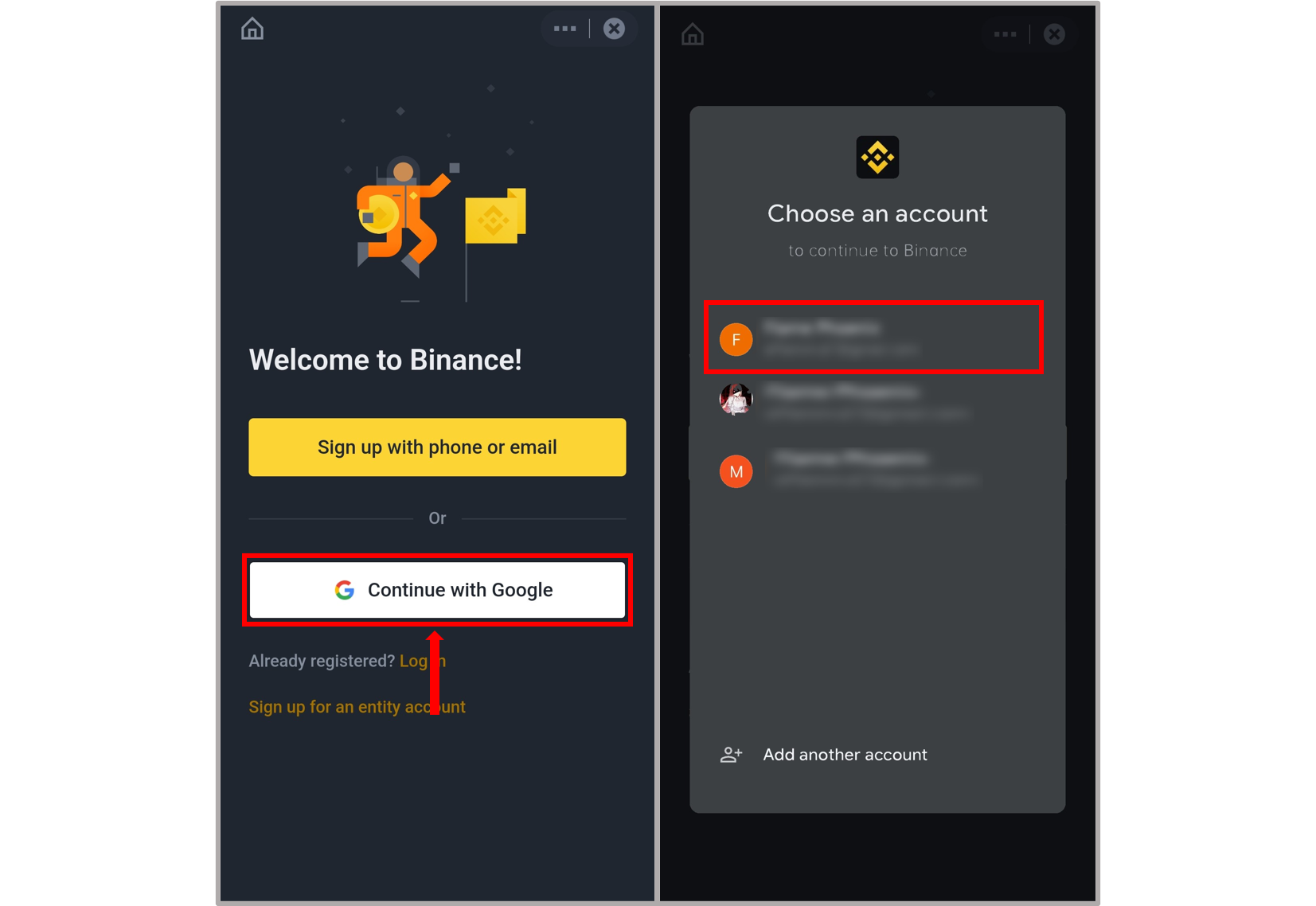
#### 3. Using Google Account
* Tap **Continue with Google**.
* **Choose an account** from the listed accounts.\
(opt for Add another account if no suitable account has already been listed)
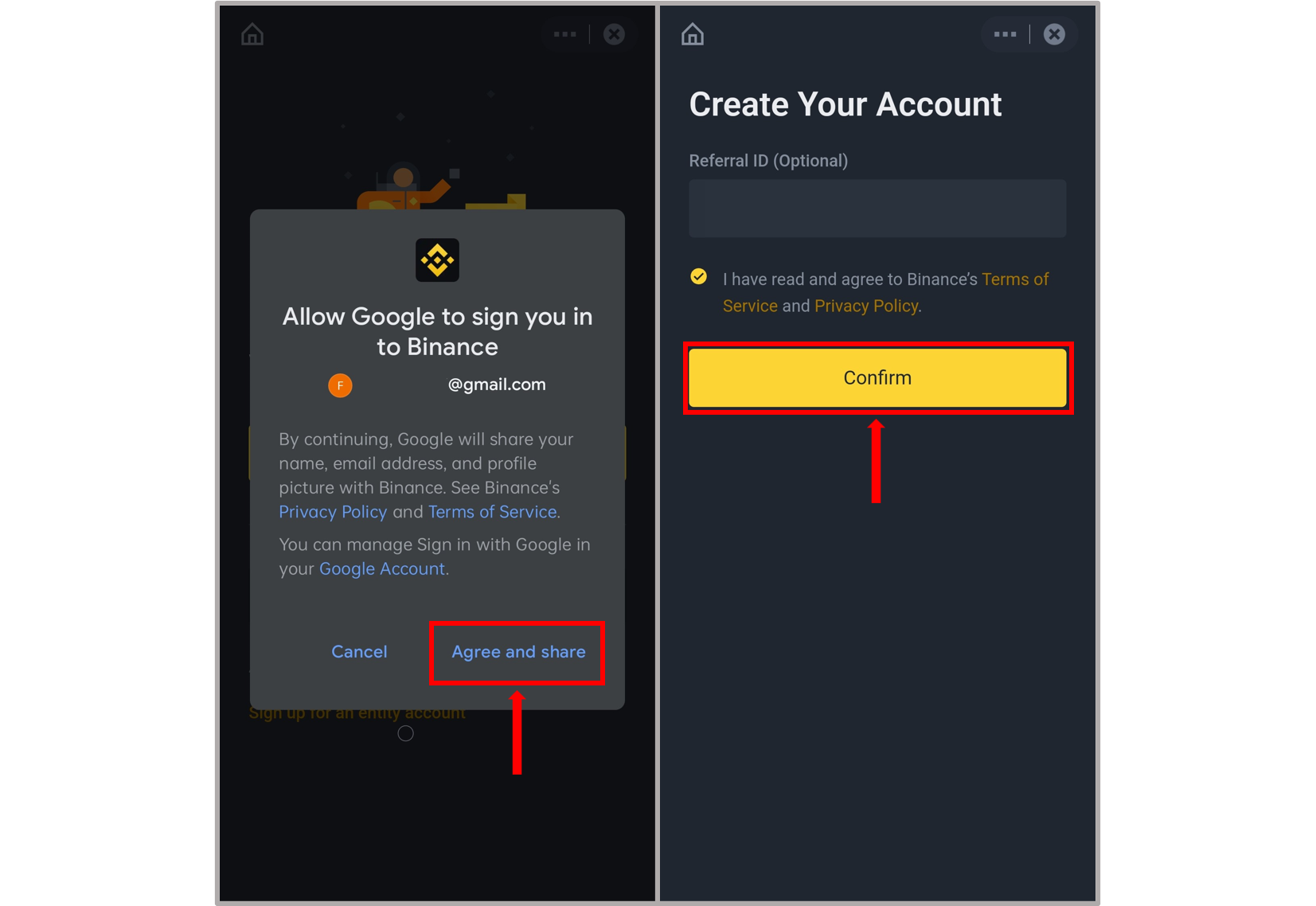
Read the contents of 'Terms and Conditions'.
* Tap **Agree and share**.
* Put a **check** against the T\&C and Privacy Policy.
* Enter the **Referral ID**, if any.
* Tap **Confirm**.
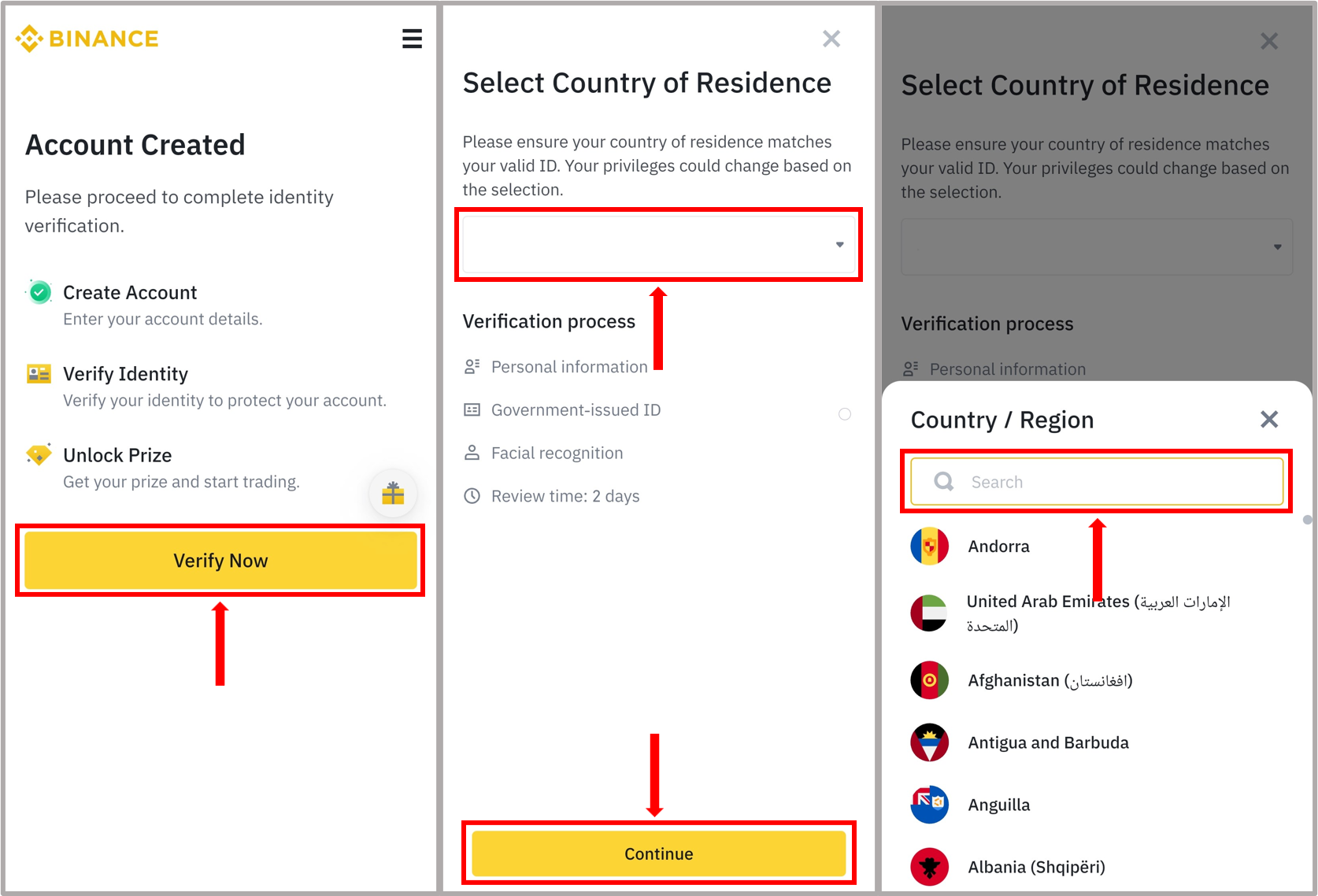
Click **Verify Now** to proceed with the next Verification process.
### II. Personal Verification Process
#### 1. Verification of ‘Country of Residence'
* Tap the **downward arrow**.
* **Search** for the country name.
* Choose your **country**.
* Press **Continue**.
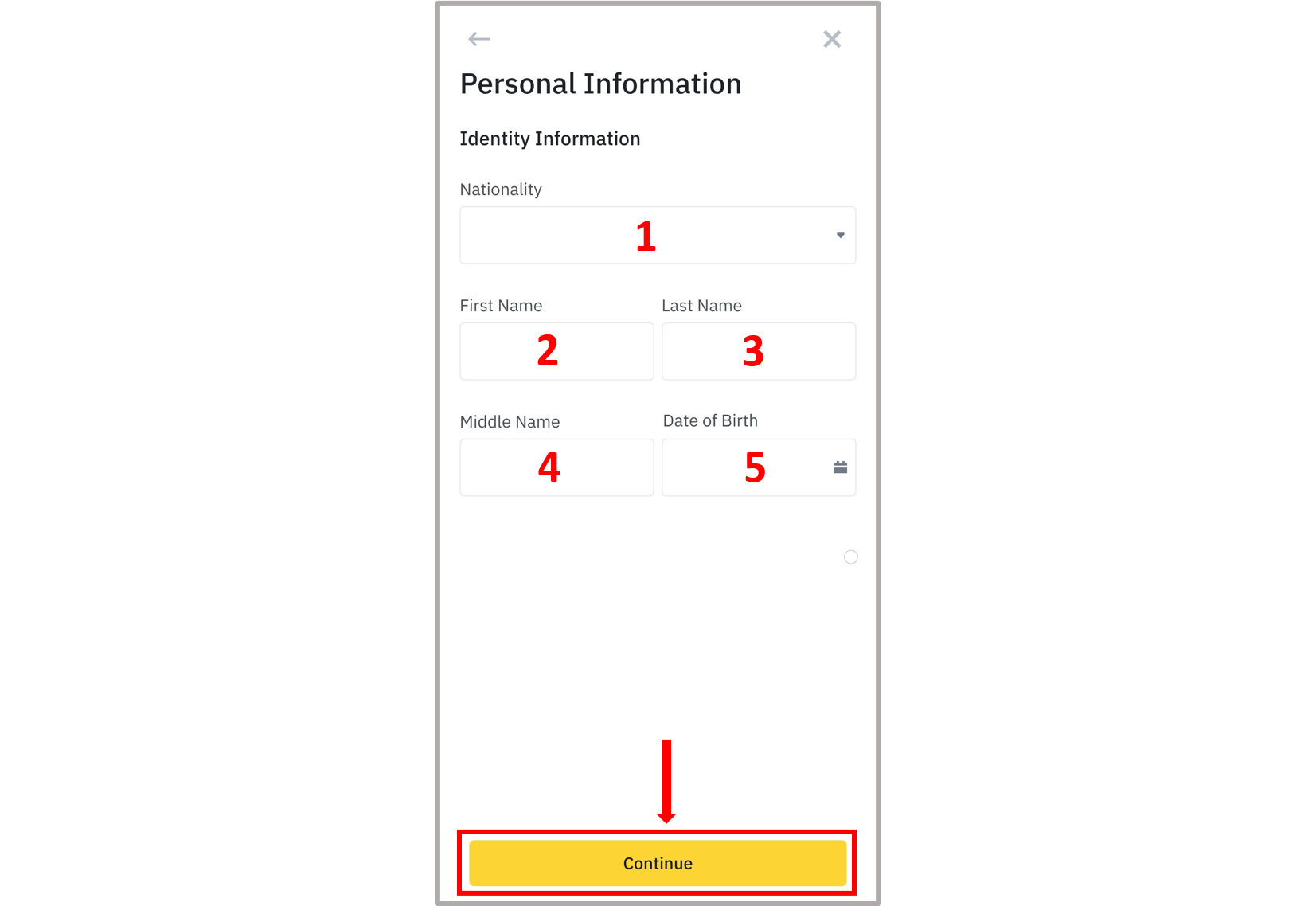
#### 2. Verification of 'Identity Information'
* Choose **Nationality**.
* Enter the required details:
1. Full Name/First Name
2. Last Name
3. Middle Name
4. Date of Birth
{% hint style="warning" %}
**NOTE:** Name and DOB should be the same as on the official documents.
If found erroneous, further KYC process will be **rejected** and the account will not be verified.
{% endhint %}
* Tap **Continue**.
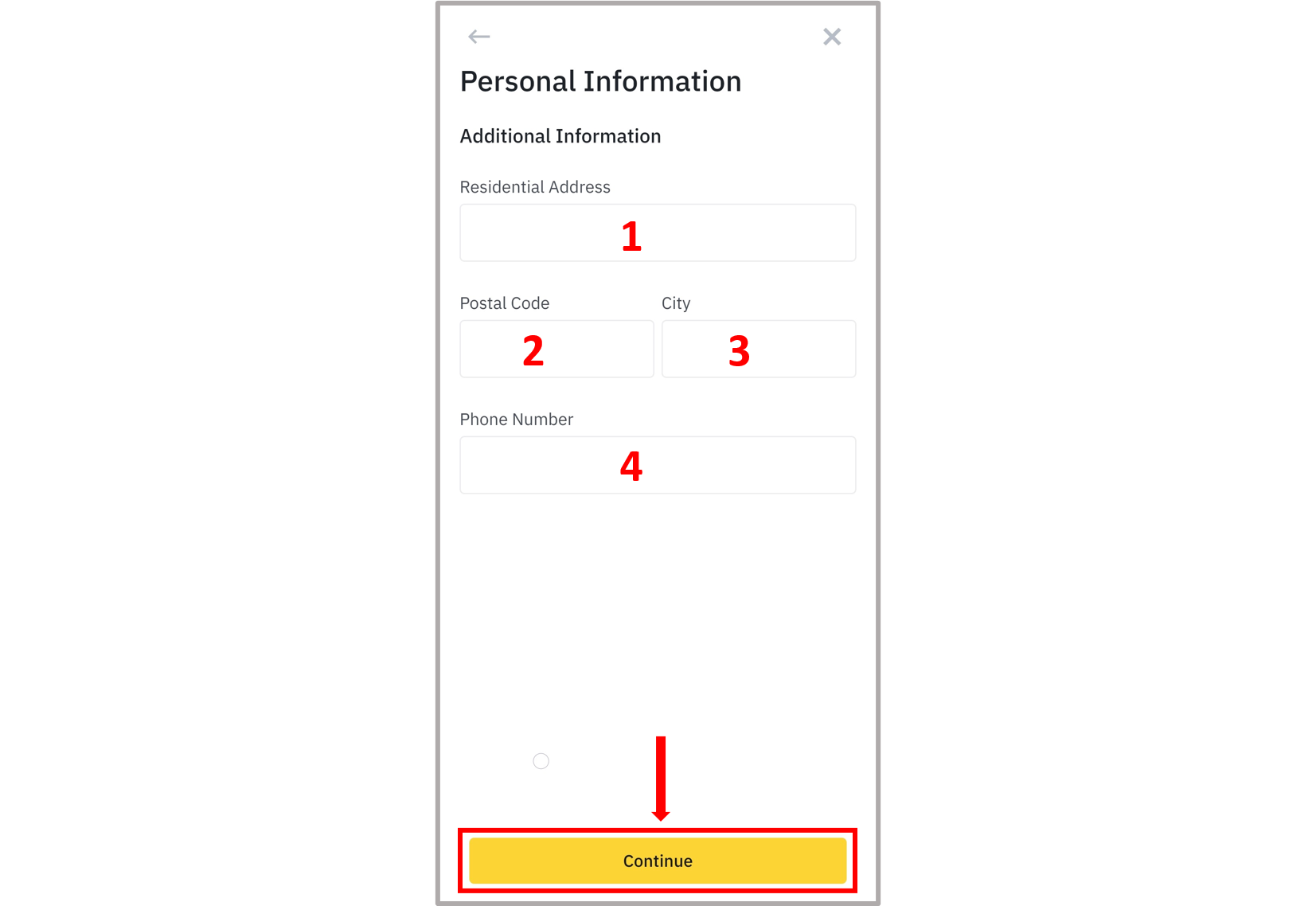
#### 3. Verification of 'Additional Information'
* Enter the required details:
1. Residential Address
2. Pin/Postal Code
3. City
4. Add the rest details, if asked for any.
* Tap **Continue**.
{% hint style="info" %}
Details will be added and KYC process will start for authentication of the user.
{% endhint %}
### III. Identity Verification Process (KYC)
#### 1. Verification of official documents
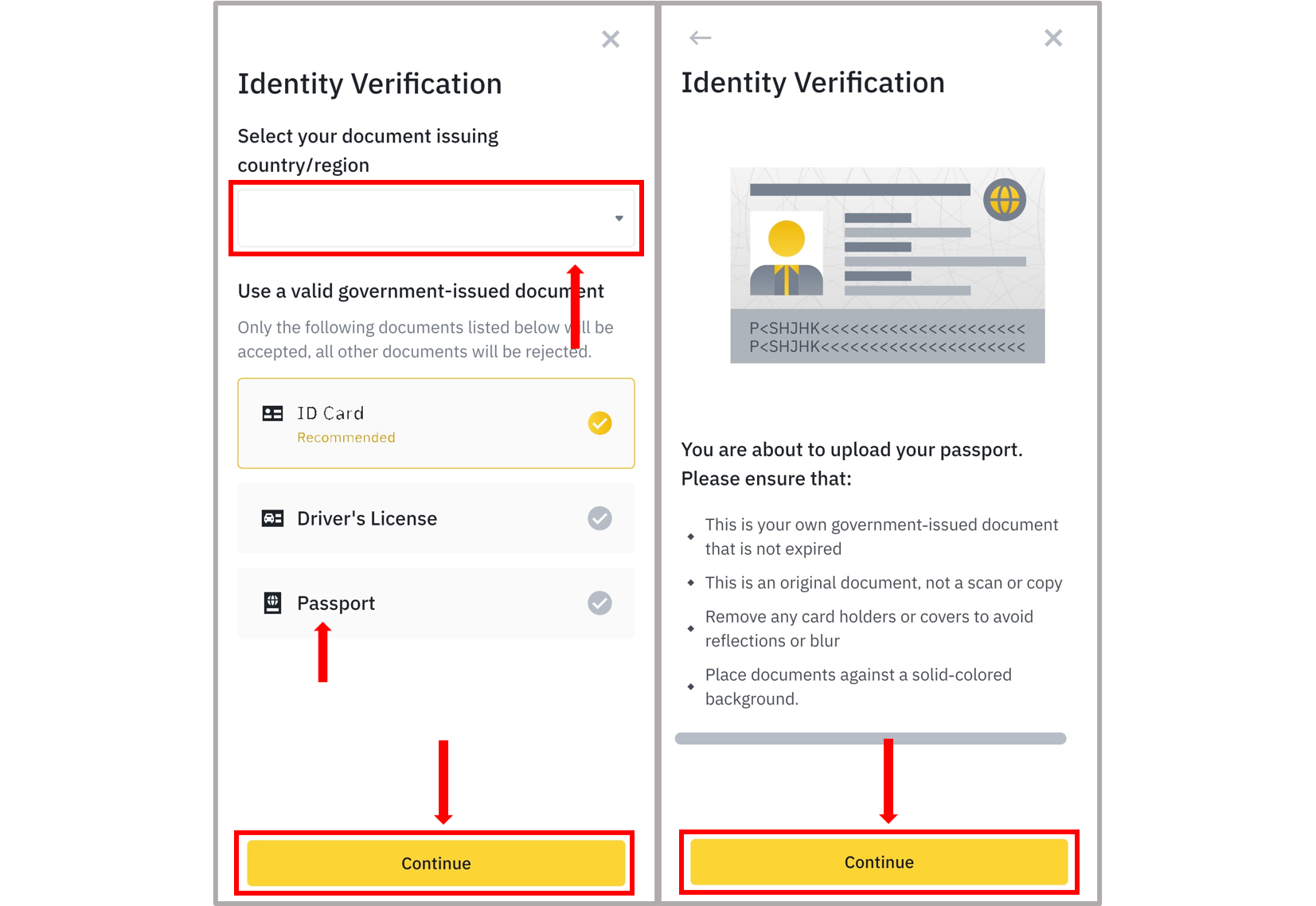
This process requires an official government-issued document - National ID, Passport, or Driver’s License.
* Select the **country/region** (where the document was issued).
* Choose an appropriate option as per the government-issued document. \
(National ID Card/Passport/Driver’s License, etc)
* Click **Continue**.
Read the instructions very carefully.
* Tap **Continue**.
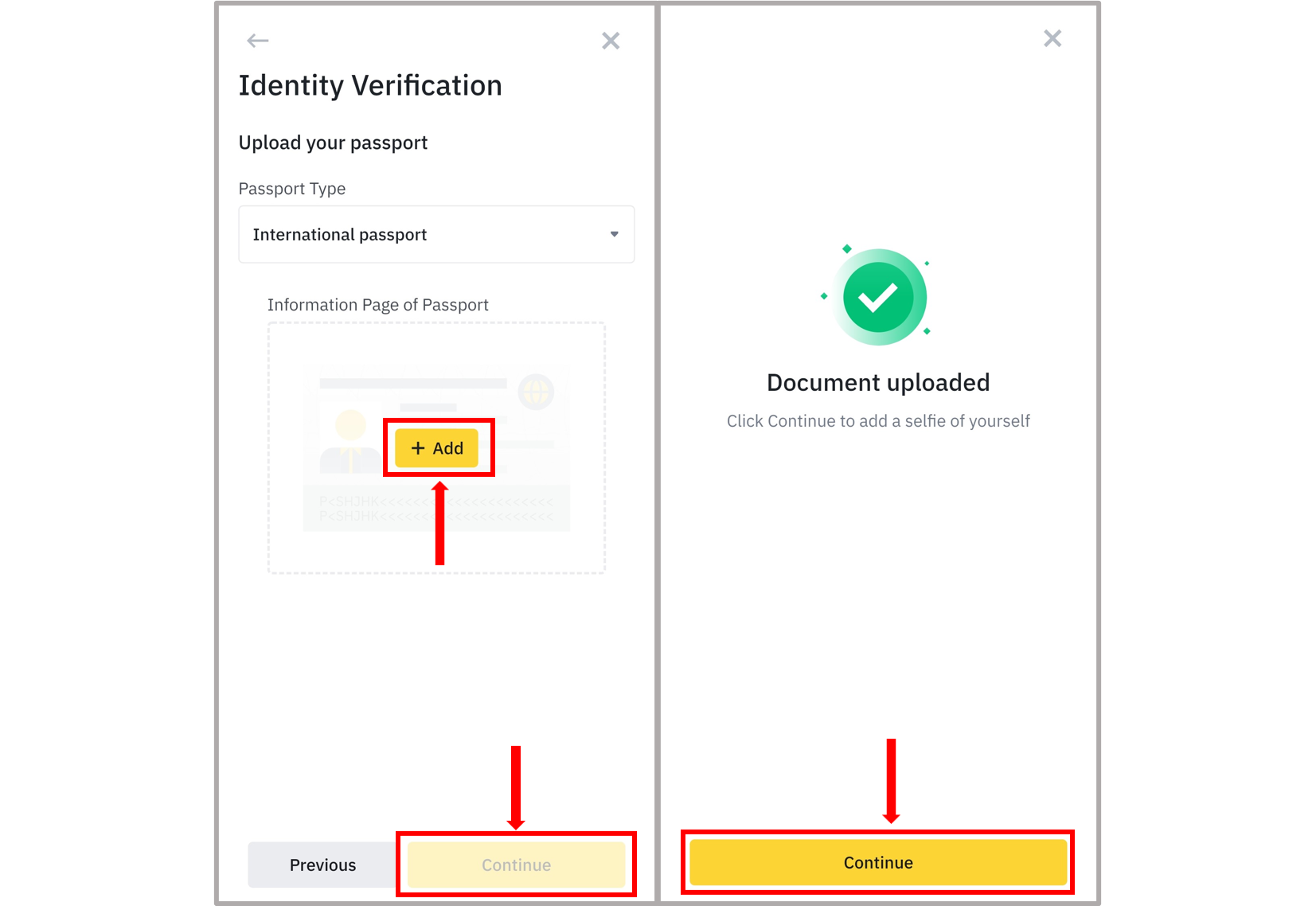
Document verification is done by uploading the images.
* Click **Add**.
* Press **Take photo**.
Upload an image of your documents.
{% hint style="warning" %}
**NOTE:** *You will be asked to upload images of the front side and back side of the document in case of National IDs.*
*Images should be clear. The contents of the image such as name, address, identification code, etc should be visible.*
**KYC process can get rejected if the uploads are not verifiable.**
{% endhint %}
* Tap **OK** and **Continue**.
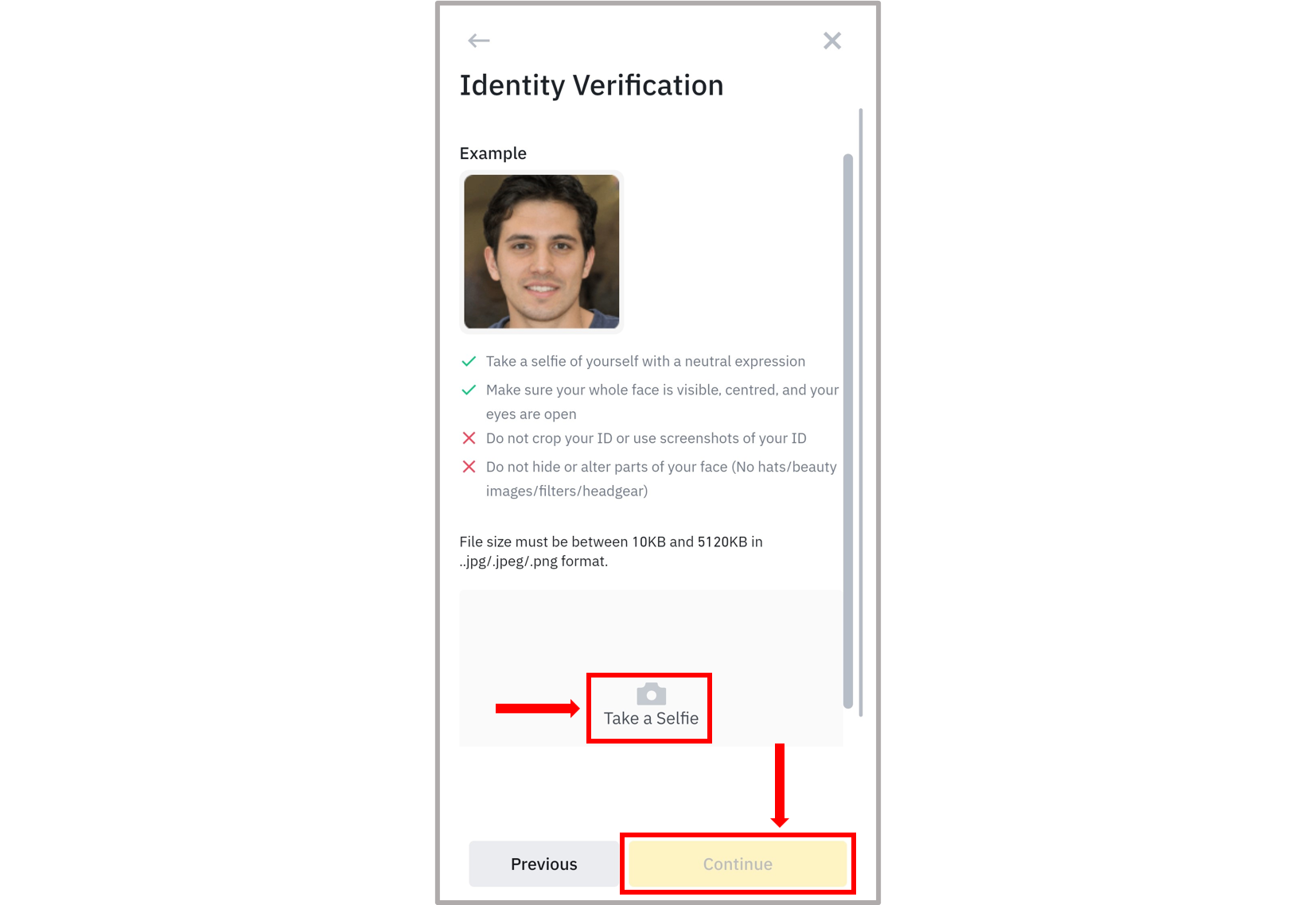
#### 2. Verification via Selfie
This process verifies the identity with the help of an on-spot image of the front face.
* Press **Take a Selfie**.
* Capture a clear image.
* Click **Continue**.
{% hint style="warning" %}
**NOTE:** *The selfie must be clear.*
*Do not wear glasses or any materials that cover the face. No head wears allowed.*
*The photo must be taken in a well-lit environment.*
**Verification can be rejected if the selfie is not proper.**
{% endhint %}
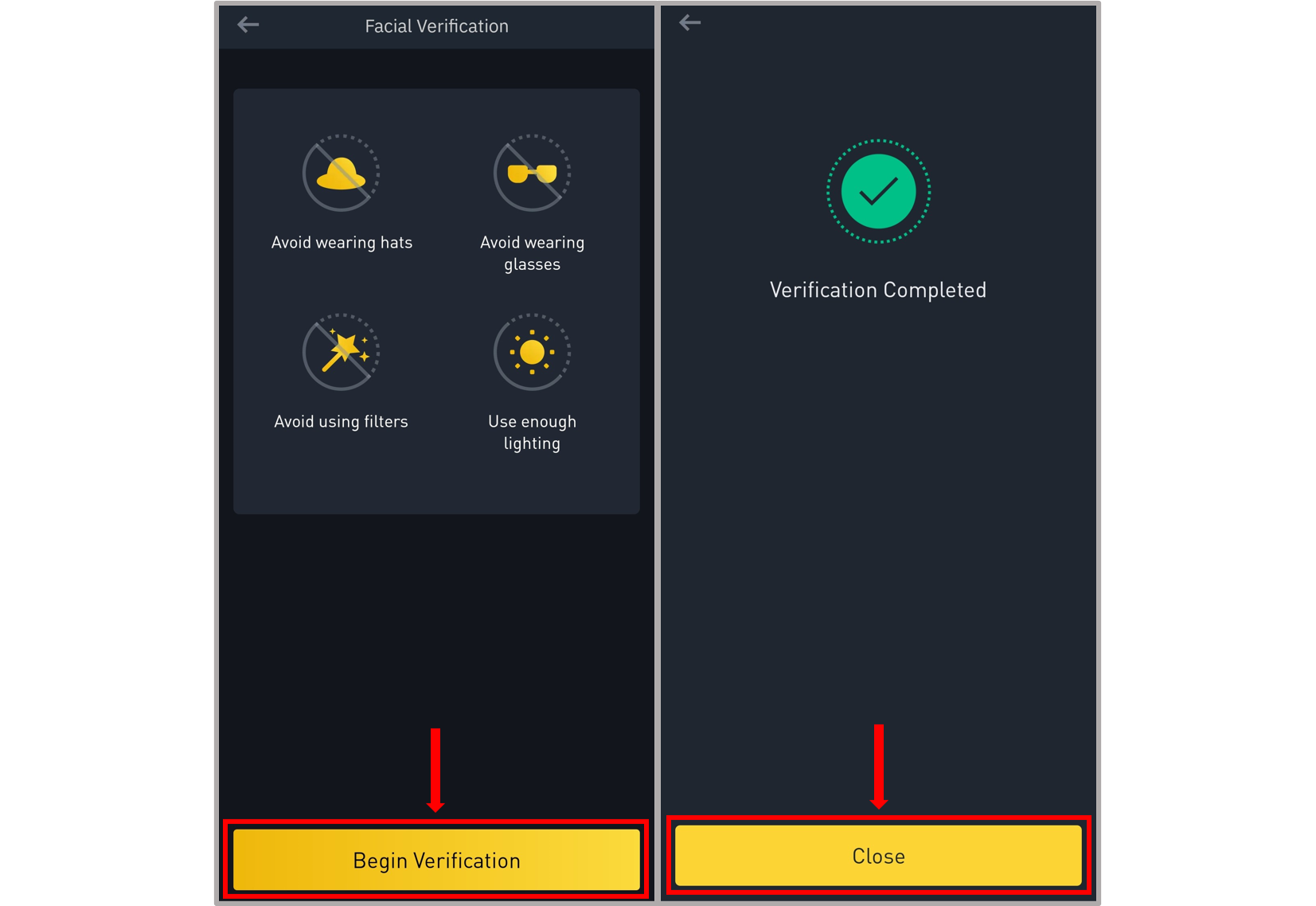
#### **3. Facial Verification**
This is a live verification of the face.
* Read the instructions and click **Begin Verification**.
* Hold the face in frame and follow the instructions mentioned.\
(blinking, turning the head left or right, etc.)
Verification will be completed shortly.
* Tap **Close**.
The account will be sent for complete verification.
{% hint style="info" %}
Verification usually takes up to a few hours or 1-2 business days.
{% endhint %}
{% hint style="info" %}
After the verification of the account, you may opt for **Verified Plus** to increase the purchase and trading limits.
*This step is not mandatory for regular users.*
{% endhint %}
#### ENABLE SECURITY FEATURES!
{% hint style="danger" %}
#### SECURITY!
Go to the ‘profile’ icon - tap ‘Security’ - enable additional security functions (Authenticator App/TEXT message/Email).
{% endhint %}
### IV. Add Payment Methods
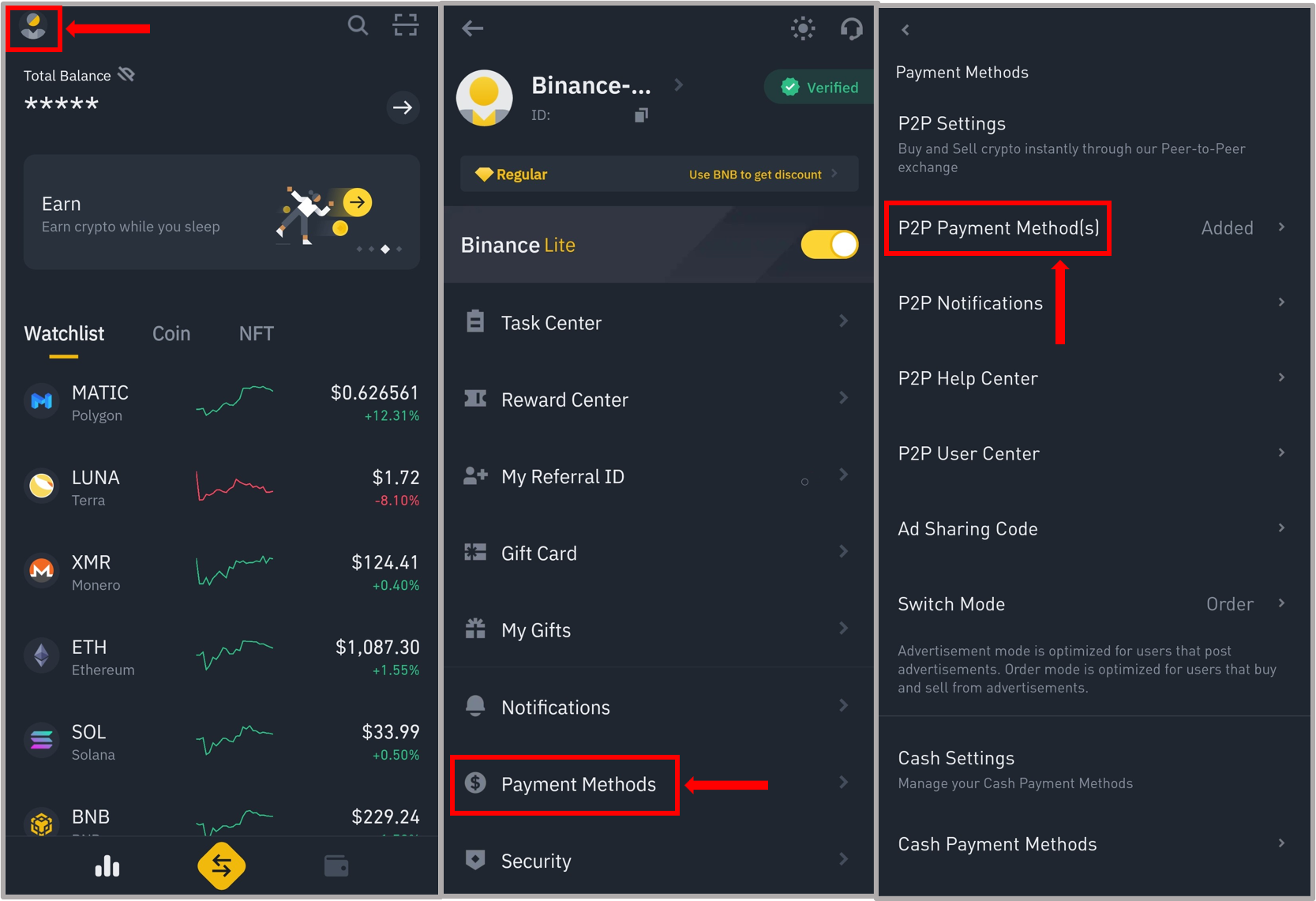
* Go to **profile** icon (at the top left corner of the page).
* Click **Payment Methods**.
* Press **P2P Payment Method(s)**.
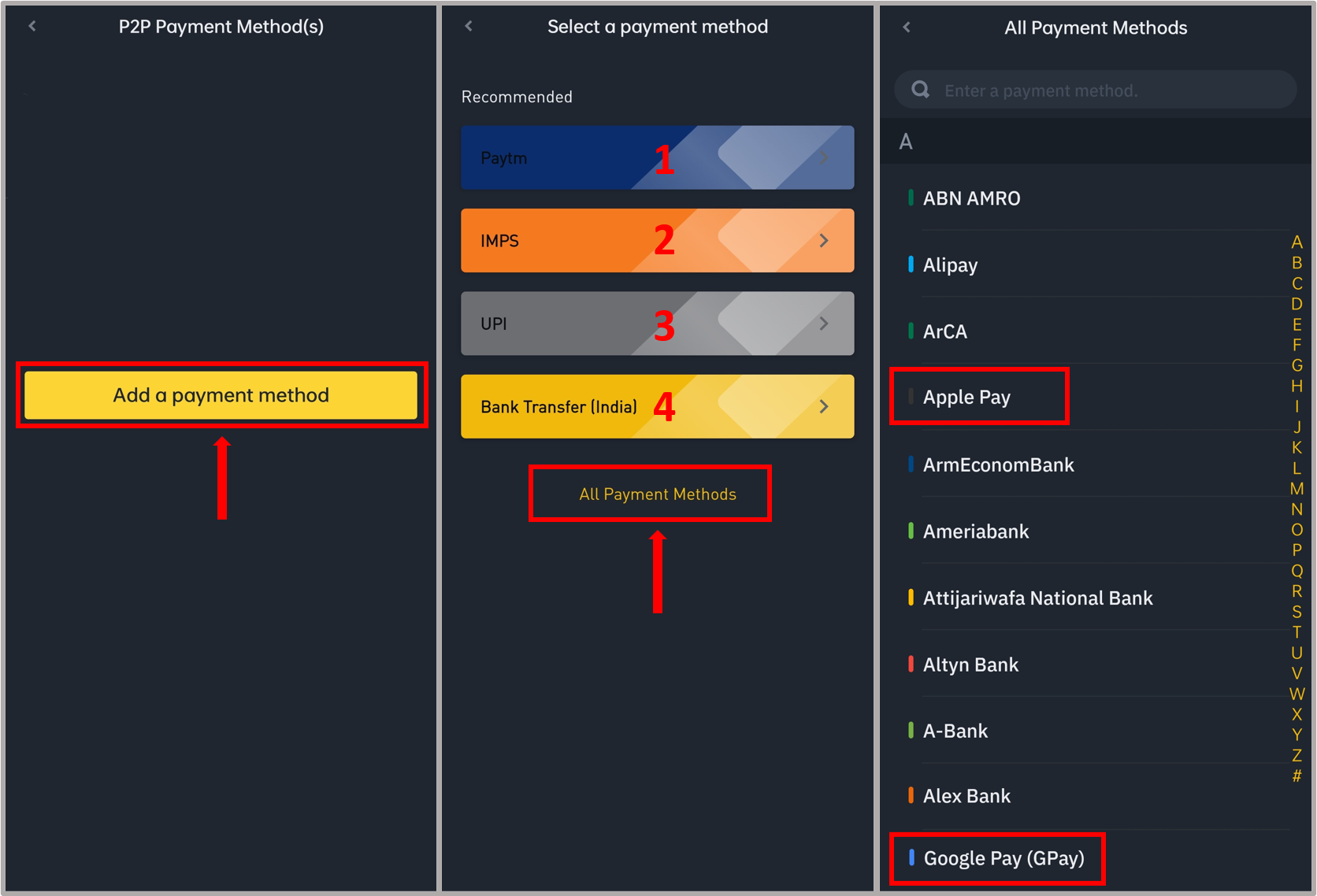
* Tap **Add a payment method**.
* Choose from all the payment methods available:
1. Paytm
2. IMPS
3. UPI
4. Bank Transfer
* Enter the details for each method accordingly and tap **Confirm**.
* Press **All Payment Methods** to browse through different gateways available. \
(For example - Google Pay (GPay) and Apple Pay are listed in ‘All Payment Methods.’)
{% hint style="info" %}
After adding at least one of the payment methods, the account becomes eligible for P2P transfers.
*Note that specific payment methods vary from seller to seller as per need.*
{% endhint %}
### V. Purchase of BNB/BUSD
#### 1. Using Bank Card
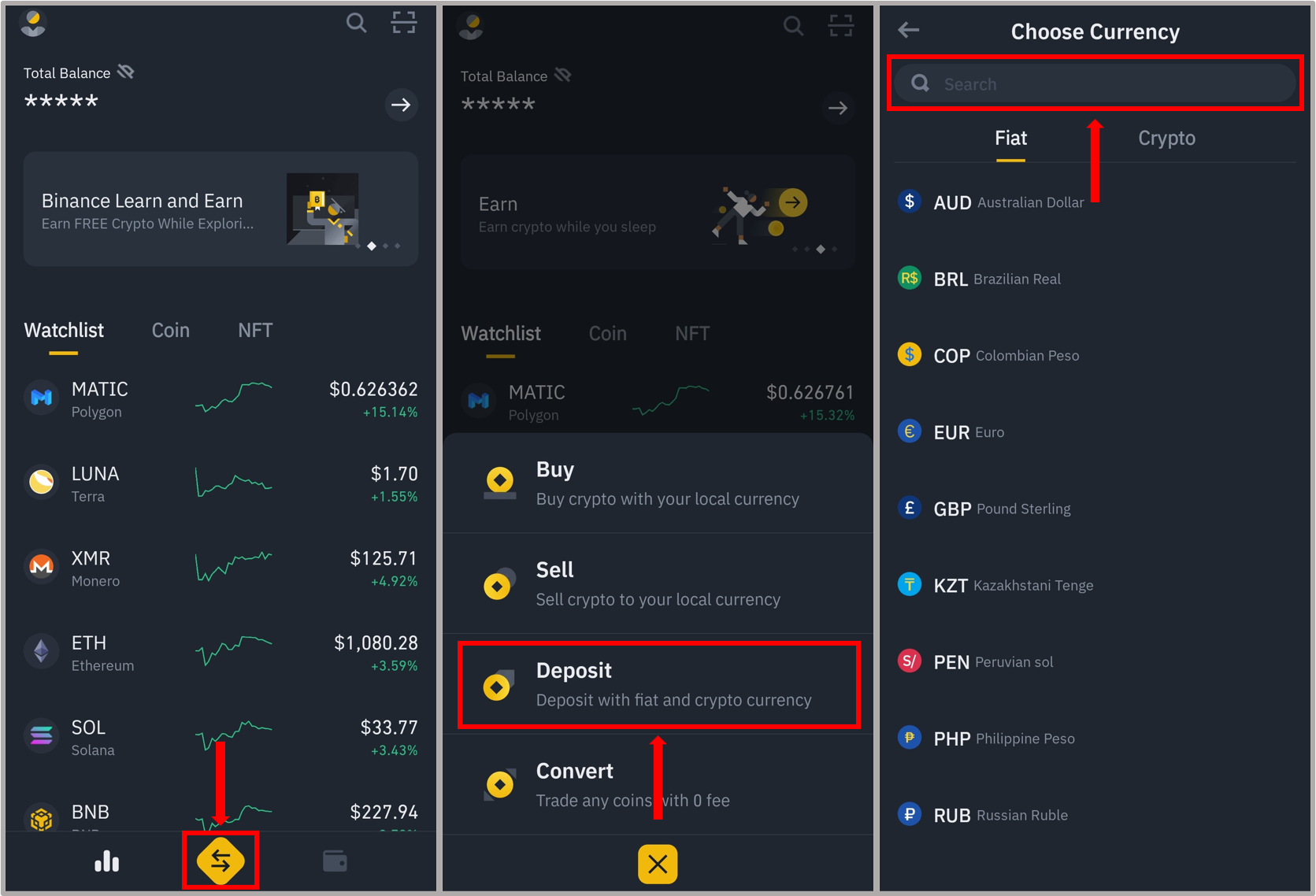
* Press the **exchange** icon.
* Tap **Deposit**.
* Search and choose the country's currency.
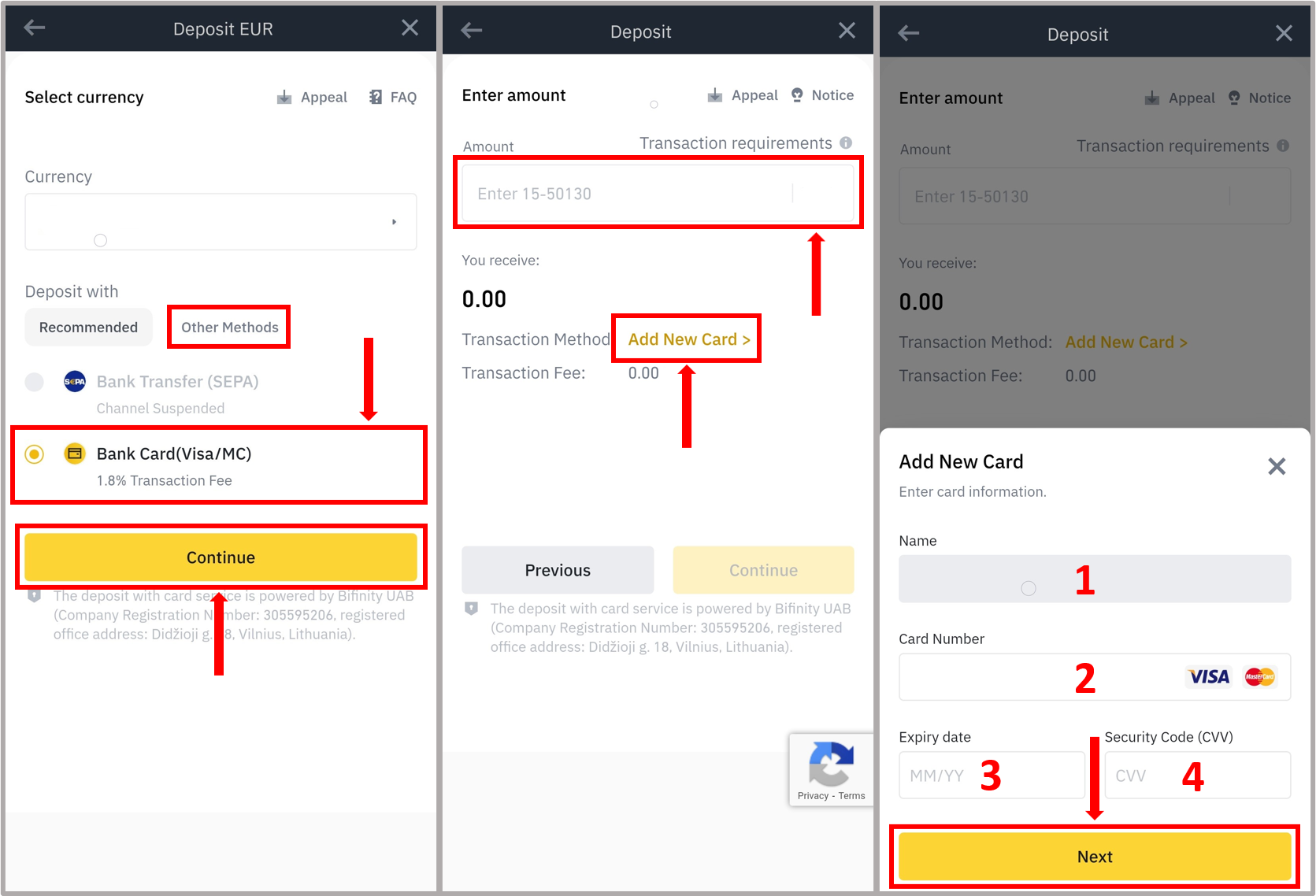
* Select **Bank Card** (Visa/Master Card). \
(You may opt for **Other Methods**, if suitable.)
* Press **Continue**.
* Enter the **amount** (of fiat currency, for which you wish to purchase BNB/BUSD).
* Tap **Add New Card**.
* Enter the required Card details:
1. Name
2. Card number
3. Expiry date
4. CVV
* Press **Next** and **Continue**.
A Confirm Order will be placed.
* Put a **check** beside the T\&C and Privacy Policy.
* Tap **Confirm**.
{% hint style="info" %}
After confirmation, the crypto amount will be credited to your spot wallet of BNB/BUSD in Binance exchange wallet.
{% endhint %}
{% hint style="warning" %}
**NOTE:** This method might ask for additional Security methods.
*Enable the email, phone number and authenticator feature from **Security** settings in profile (as per the steps mentioned above -* [**SECURITY!**](#undefined)*).*
{% endhint %}
#### 2. Using P2P (Peer-to-Peer Transfer)
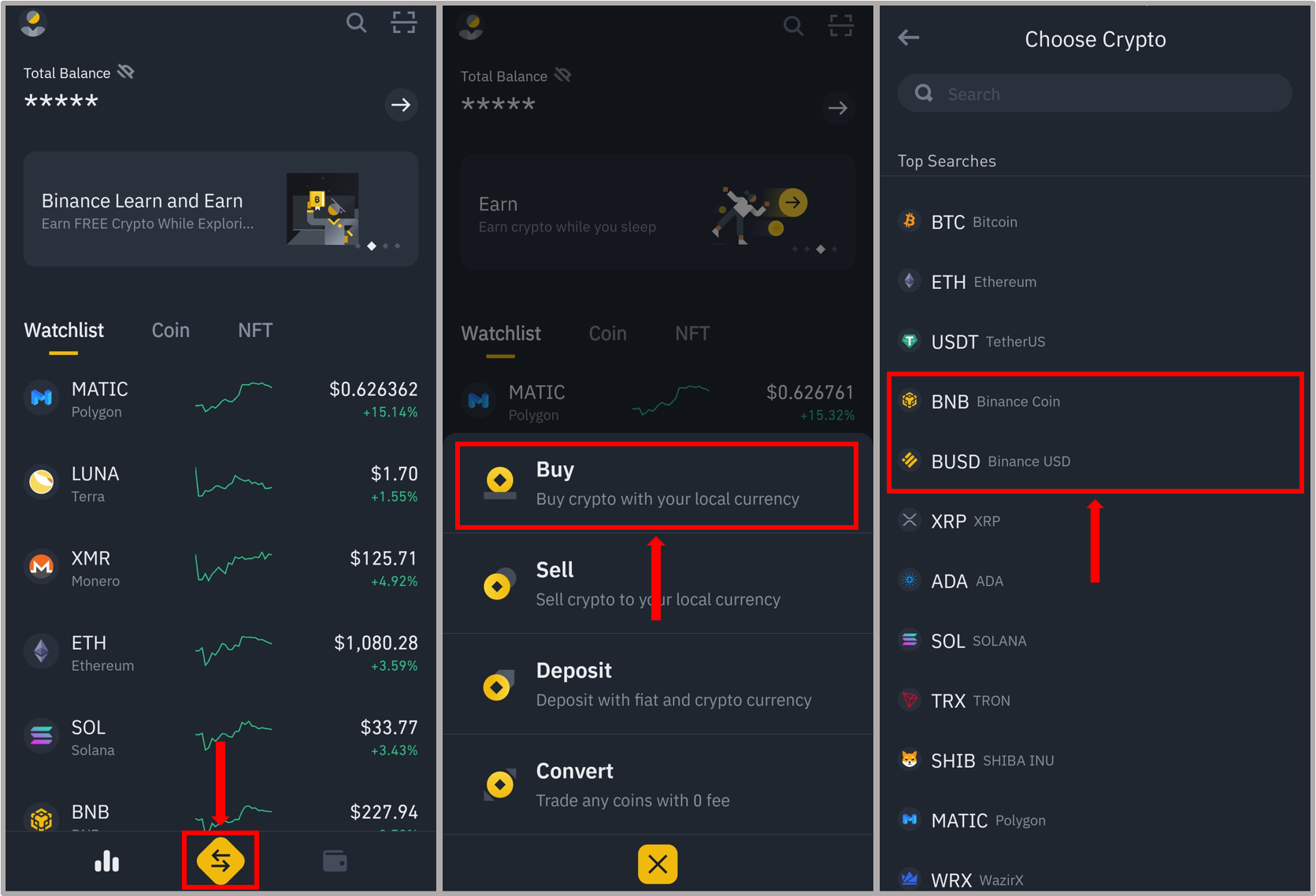
* Press the **exchange** icon.
* Tap **Buy**.
* Choose the cryptocurrency - **BNB** or **BUSD**.
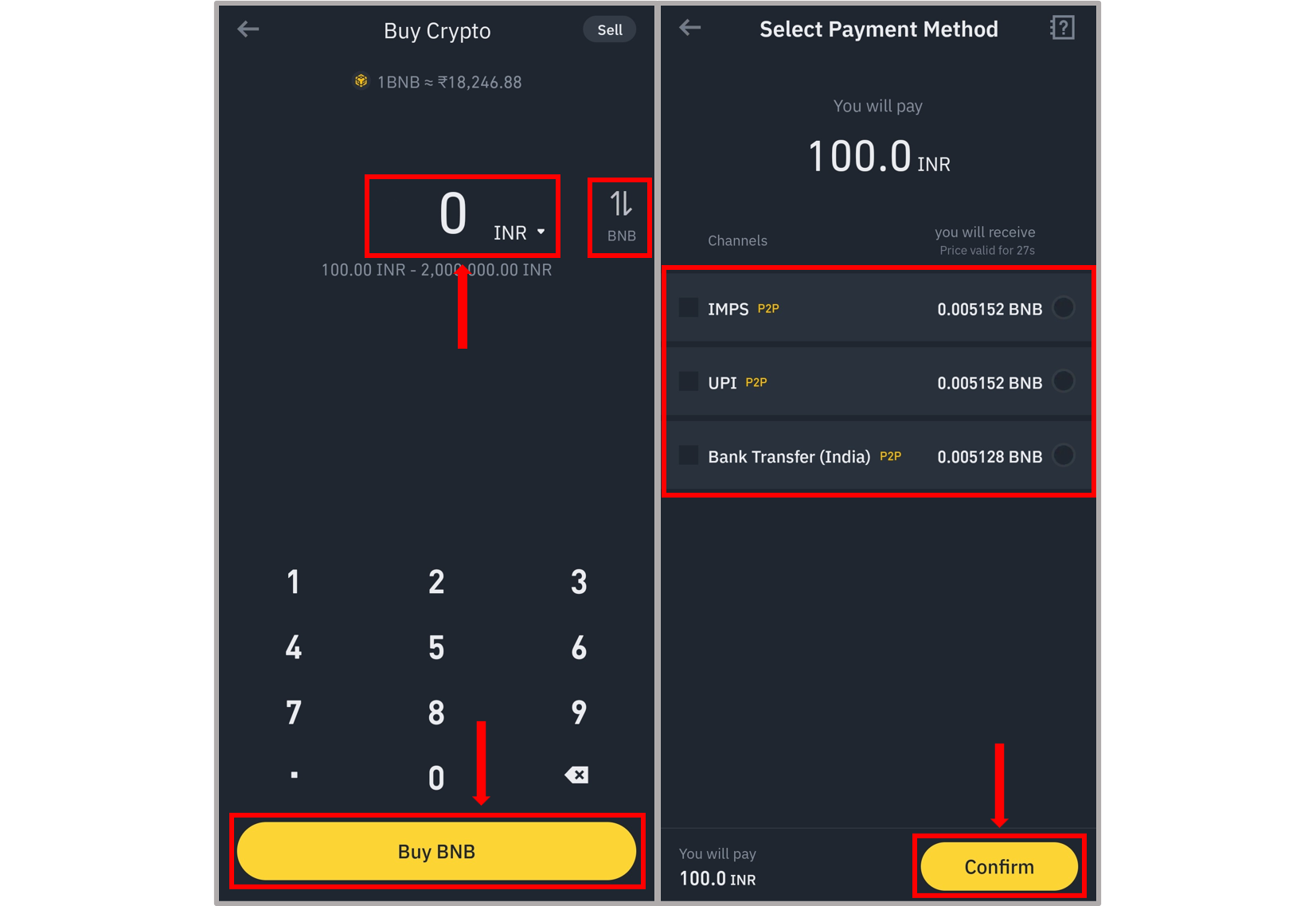
* Enter the **amount** (of fiat money for which you wish to buy BNB/BUSD or the corresponding amount of BNB/BUSD directly).
* Click **Buy BNB/BUSD**.
* Choose a **payment method** (added as per [step IV](#iv.-add-payment-methods)).
* Press **Confirm**.
Order will be created and matched with a seller shortly.
{% hint style="warning" %}
Check the details of the seller.
{% endhint %}
{% hint style="info" %}
**Chat** with the seller, if required for authenticity or conditions.
{% endhint %}
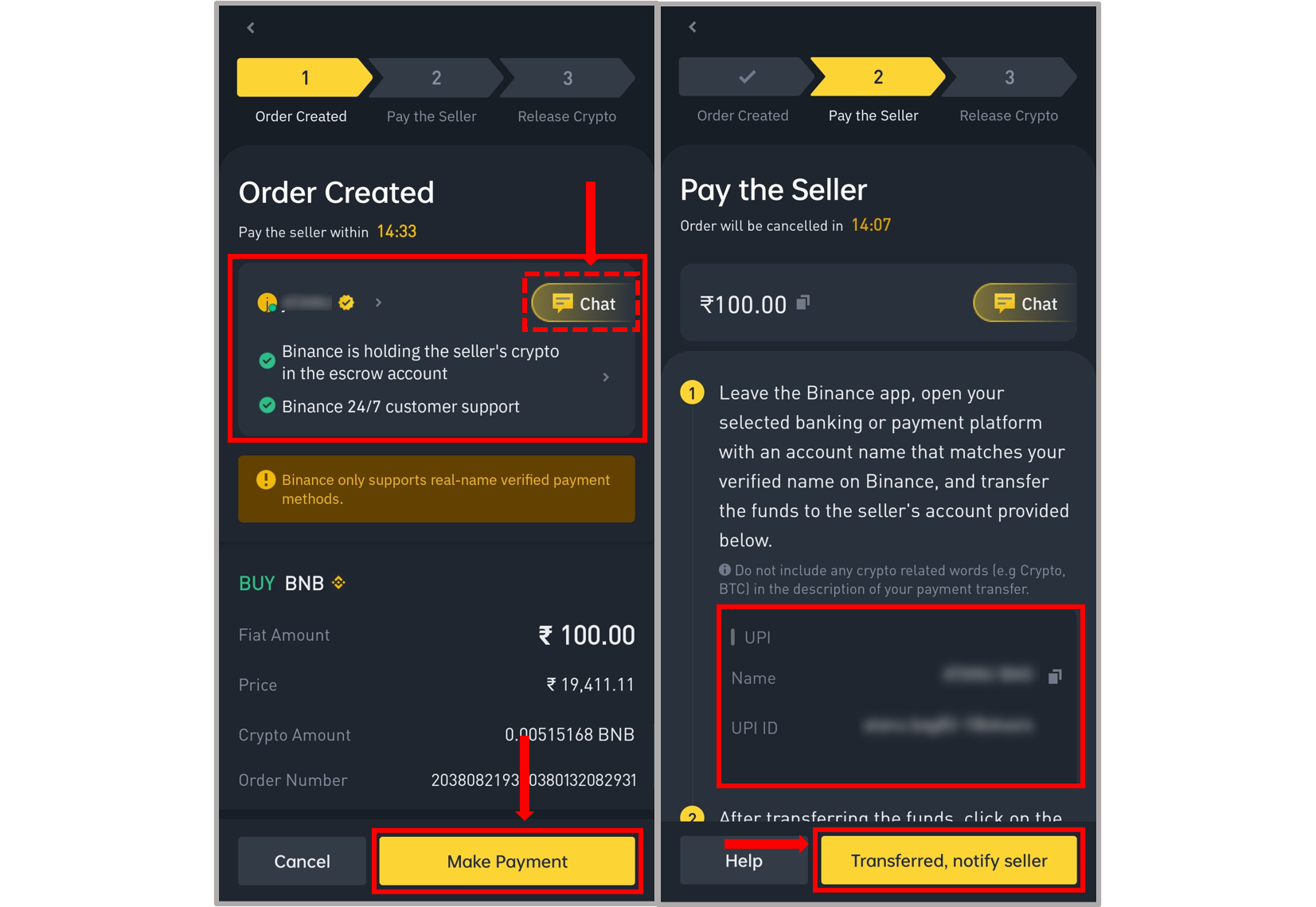
* Press **Make Payment**.
* Details of the seller will appear as per the chosen payment method.\
(UPI, IMPS or Bank Transfer details of the seller).
1. Keep the Binance screen running in the background.
2. Switch to your respective payment platform (UPI payment app or Bank app).
3. Pay the designated amount at the details of seller shown in Binance app.
4. After successful payment, revert to Binance.
* Press **Transferred, notify seller.**
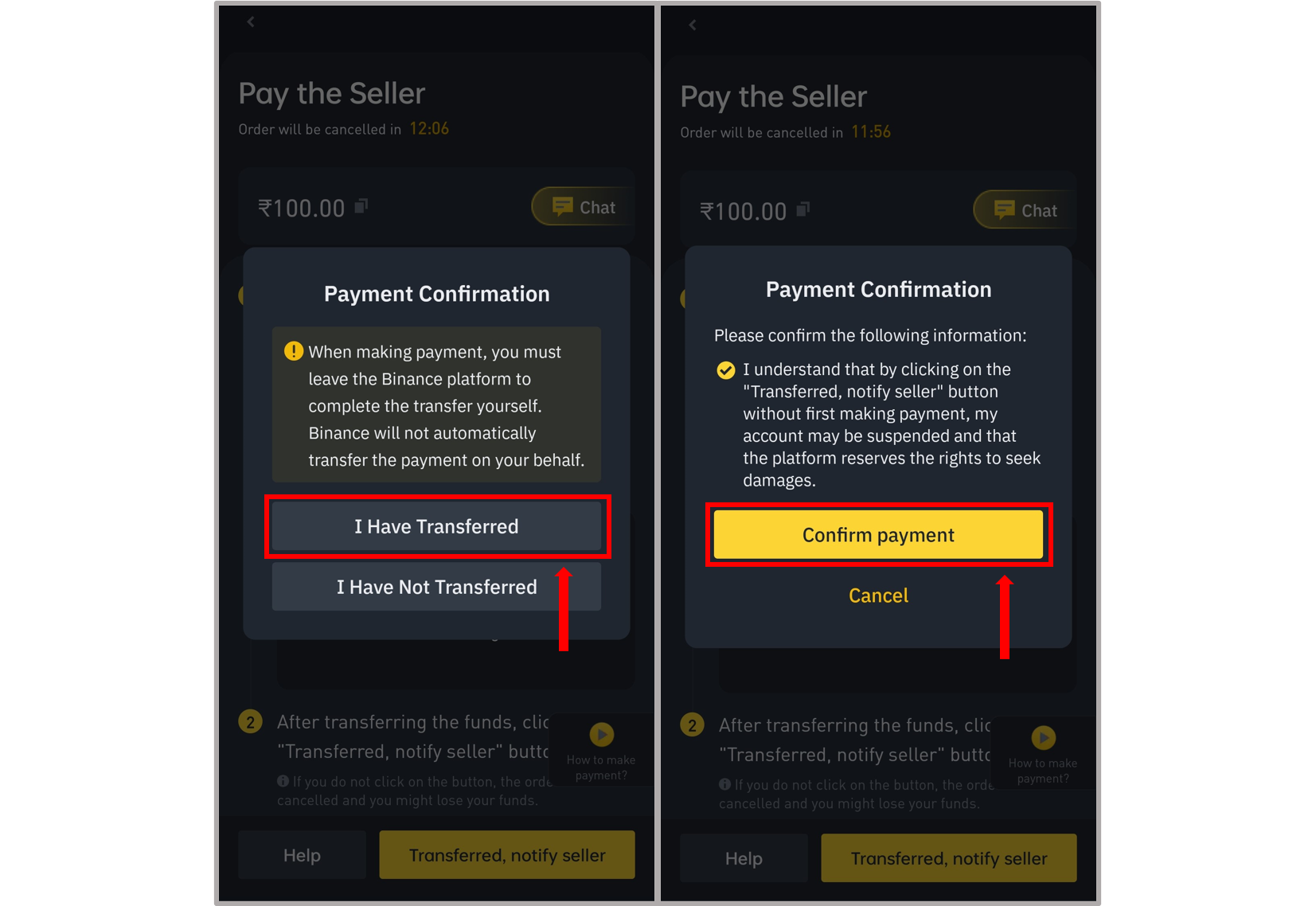
* Approve the ‘Payment Confirmation’ by pressing **I Have Transferred**.
{% hint style="warning" %}
This step should be done only after a confirmation that the payment has been done.
**Failing to do so can result in discrepencies and accountability.**
{% endhint %}
* Put a **check** against the confirmation.
* Press **Confirm payment**.
{% hint style="info" %}
After confirmation from the seller, the crypto amount will be sent to your spot wallet of BNB/BUSD in Binance exchange wallet.
*You will be notified of the crypto credit through App notifications.*
{% endhint %}
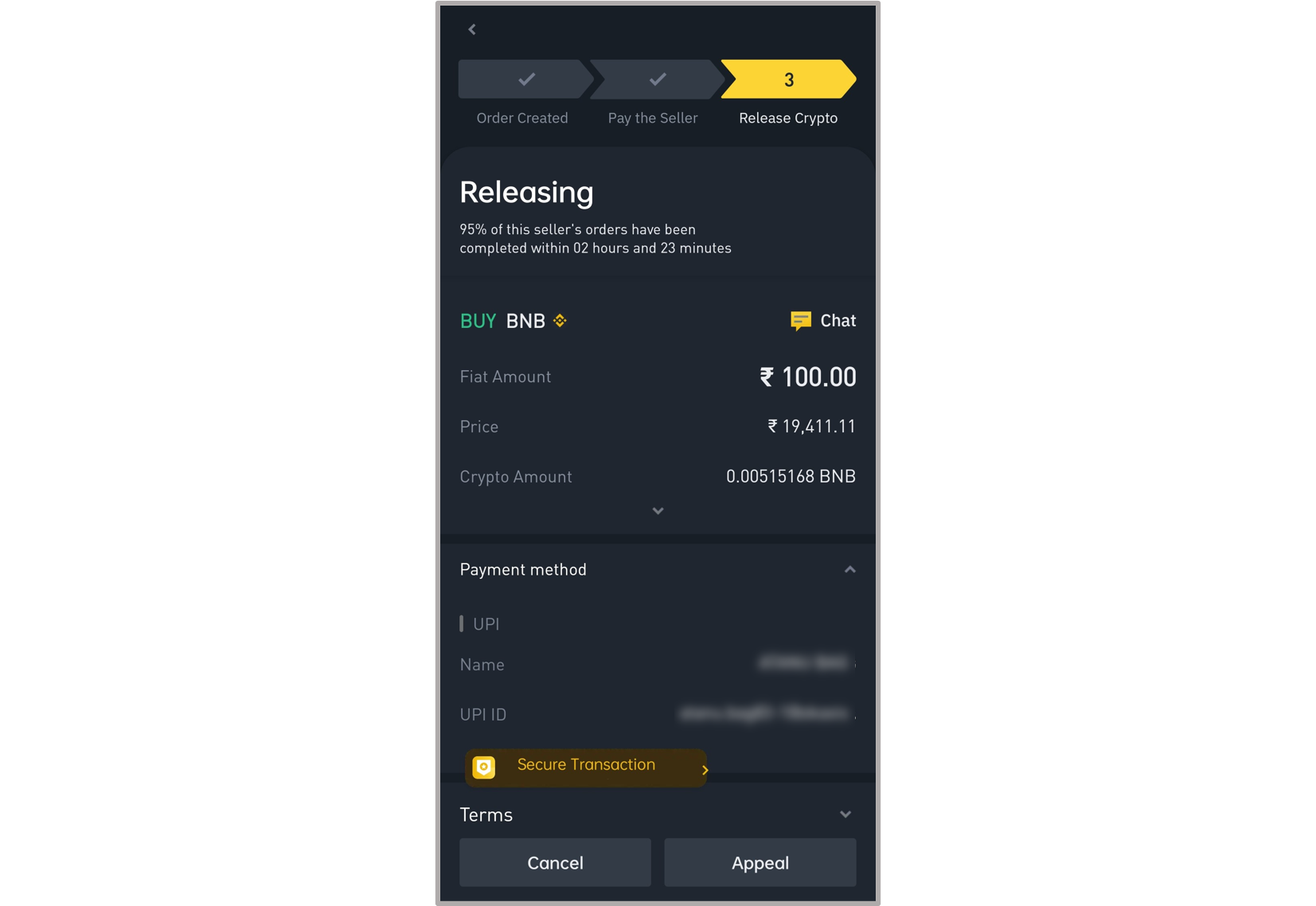
{% hint style="warning" %}
**NOTE**: Release of crypto can take time, if not credited within the displayed time limit, request for an ***Appeal***.
{% endhint %}
{% hint style="success" %}
**Congratulations!** The purchase of cryptocurrency has been done successfully.
{% endhint %}
### VI. Withdraw BNB/BUSD to personal wallet
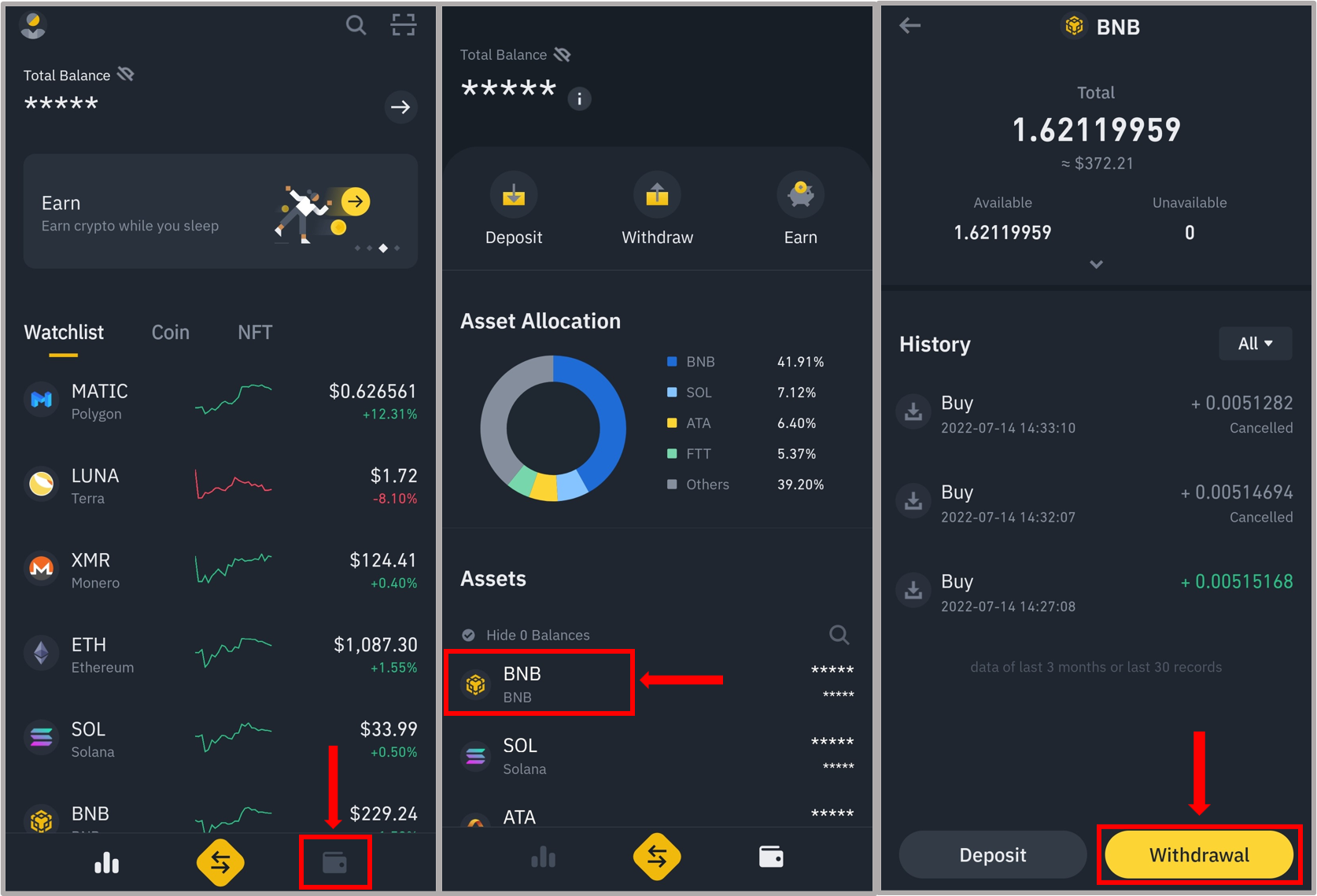
* Go to **wallet** icon (at bottom right of the page).
* Click on **BNB/BUSD.**
* Press **Withdrawal.**
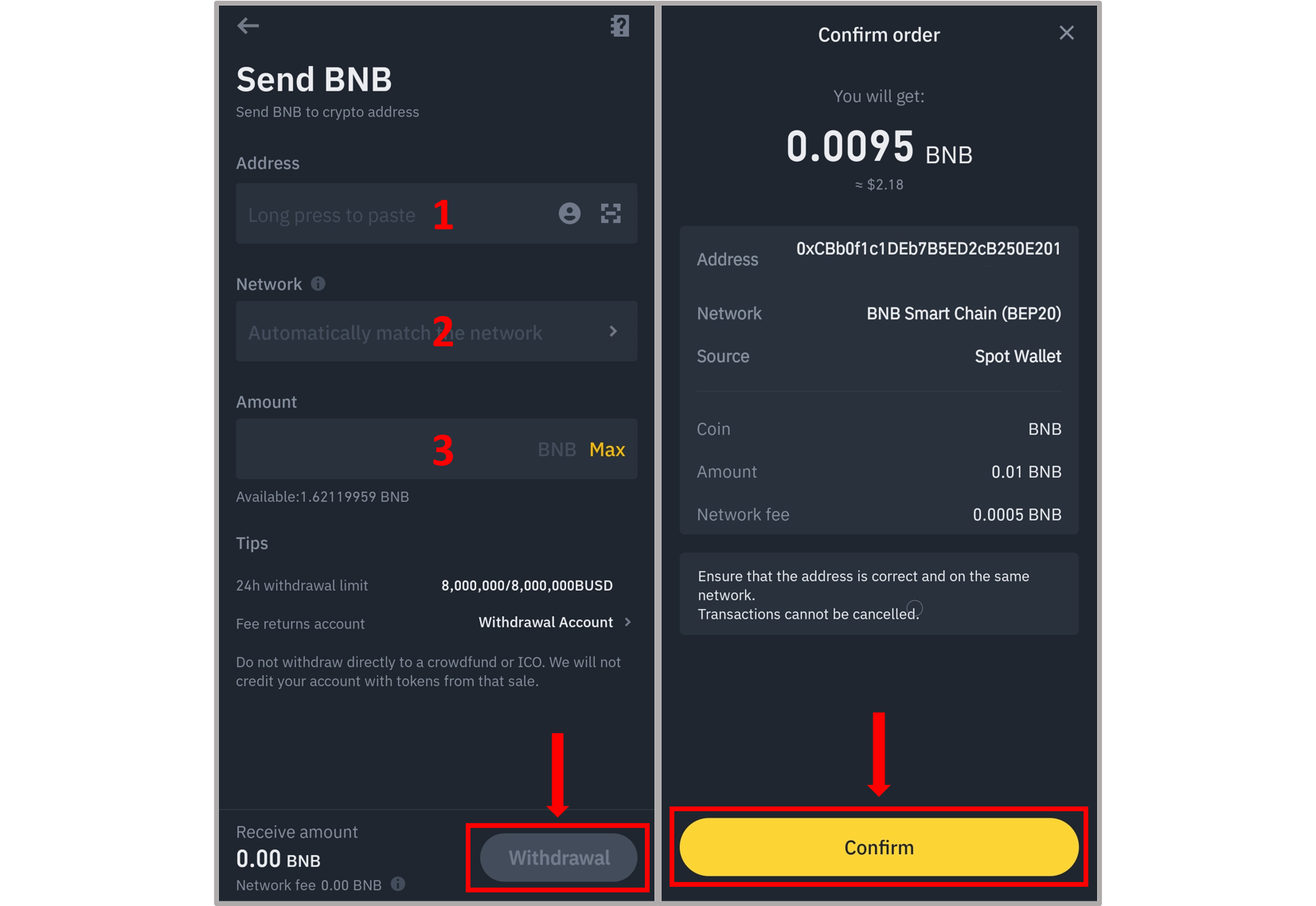
* Enter the **receiving address** of your personal wallet.
{% hint style="warning" %}
*Make sure it is a **BSC BEP-20** wallet address starting with - **'0x...'***
**Once a transaction has been sent to the wrong wallet address, it cannot be retrieved.**
{% endhint %}
* Select **BNB Smart Chain (BEP-20) Network** (if not detected already).
* Enter the **Amount** (within the decided limits).
* Tap on **Withdrawal**.
* Confirm the order by pressing **Confirm** button.
{% hint style="info" %}
Pass the 'Risk Warning' by clicking **Verify Now**.
*This step may or may not be asked. If asked, thoroughly read the security questions and answer accordingly.*
{% endhint %}
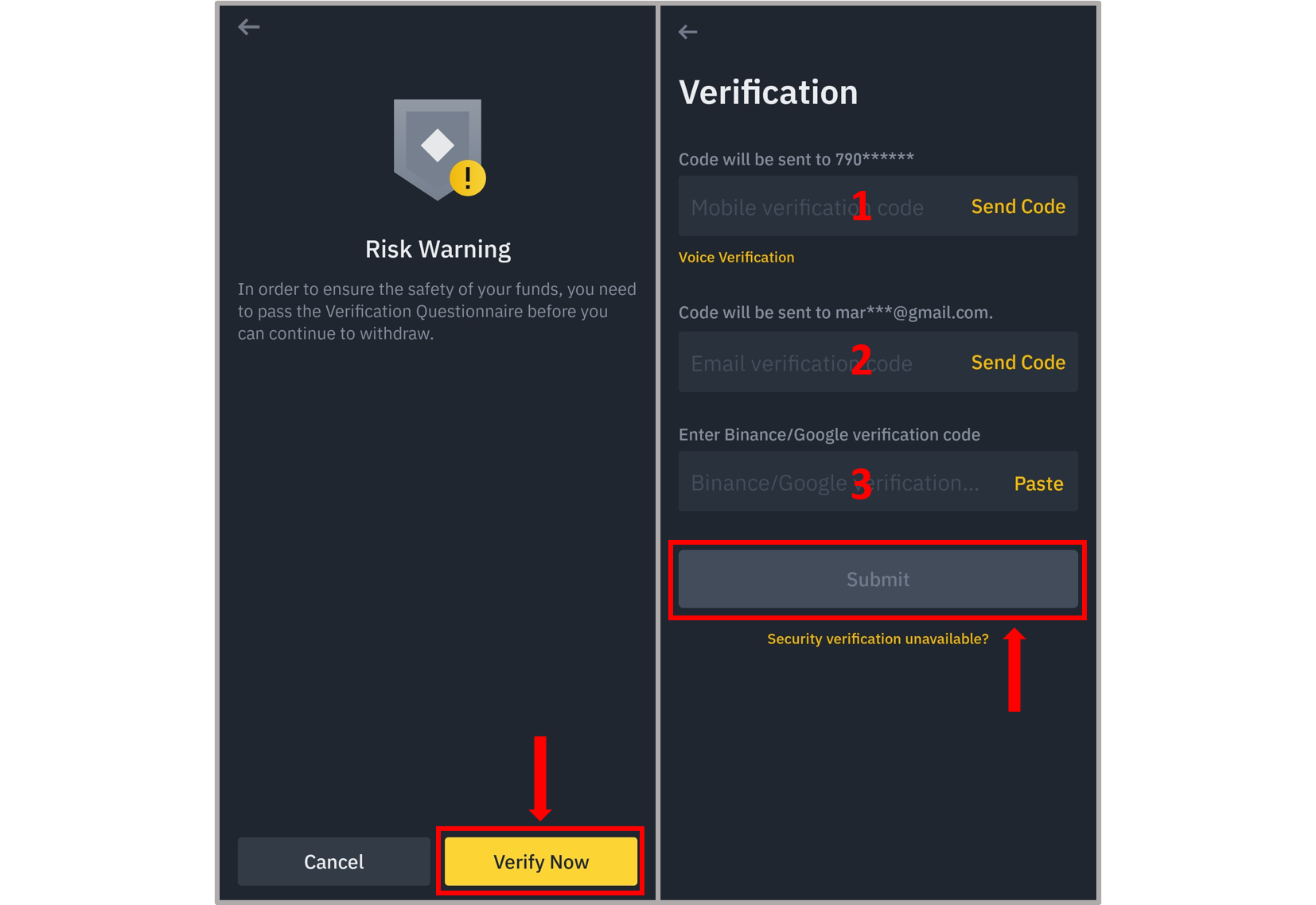
Complete the **Verification**.
* Tap **Send Code**.
1. Enter the code sent to your registered **phone number** (if added as per [Security](#undefined) steps).
2. Enter the code sent to your registered **email address** (if added as per [Security](#undefined) steps).
3. Enter the verification code from **Google Authenticator App** (if added as per [Security](#undefined) steps).
* Press **Submit**.
{% hint style="info" %}
The order will be processed shortly and your personal wallet will be funded.
{% endhint %}
{% hint style="success" %}
**Congratulations!** The wallet has been funded successfully.
{% endhint %}